Clip to Notes
Save web pages as notes
Click once in Safari and the page you're reading shows up in Notes as a clean, readable note, with the article, its photos and working links. No copying and pasting, no account, and nothing leaves your Mac.
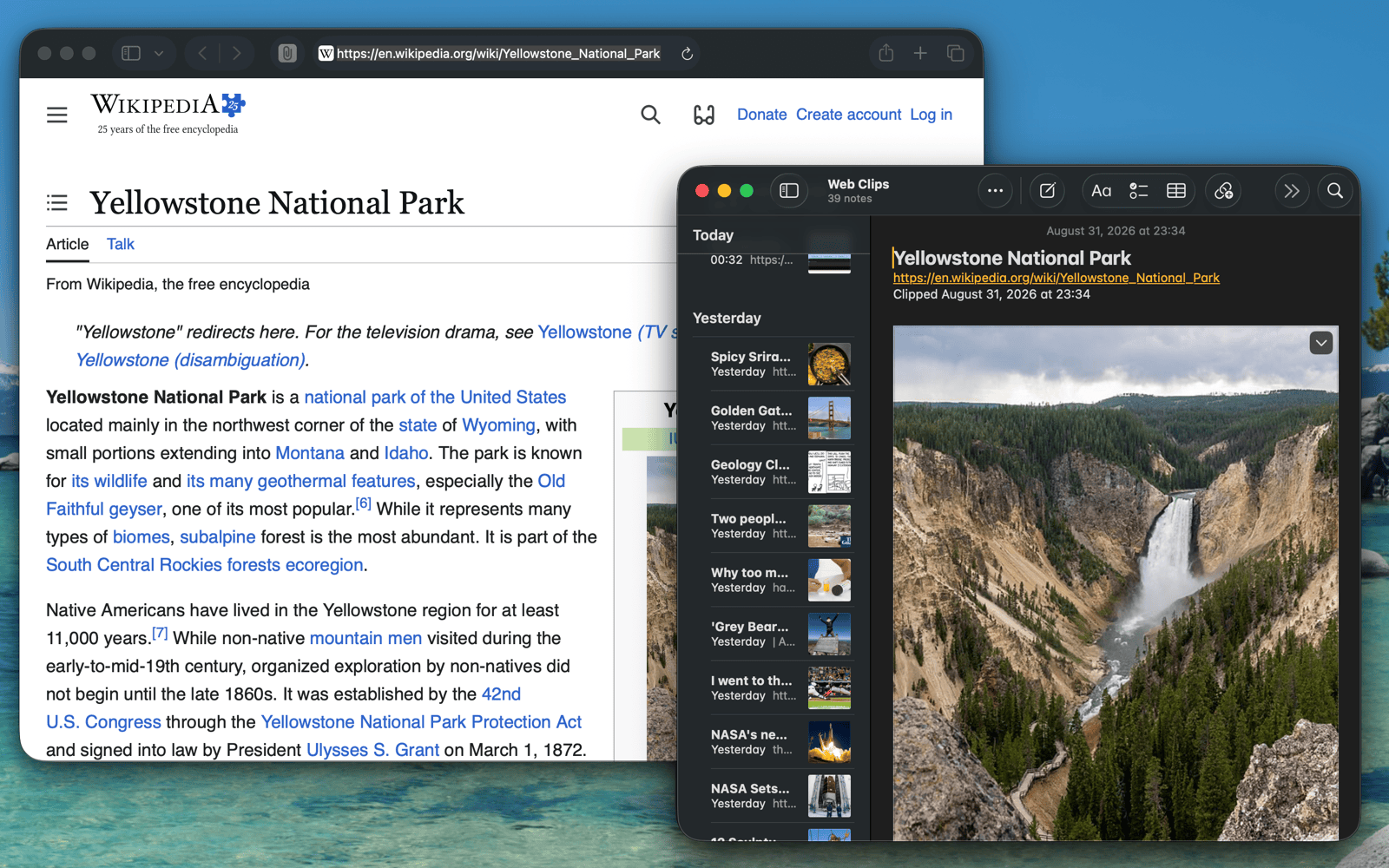
One click in Safari puts the whole page in Notes
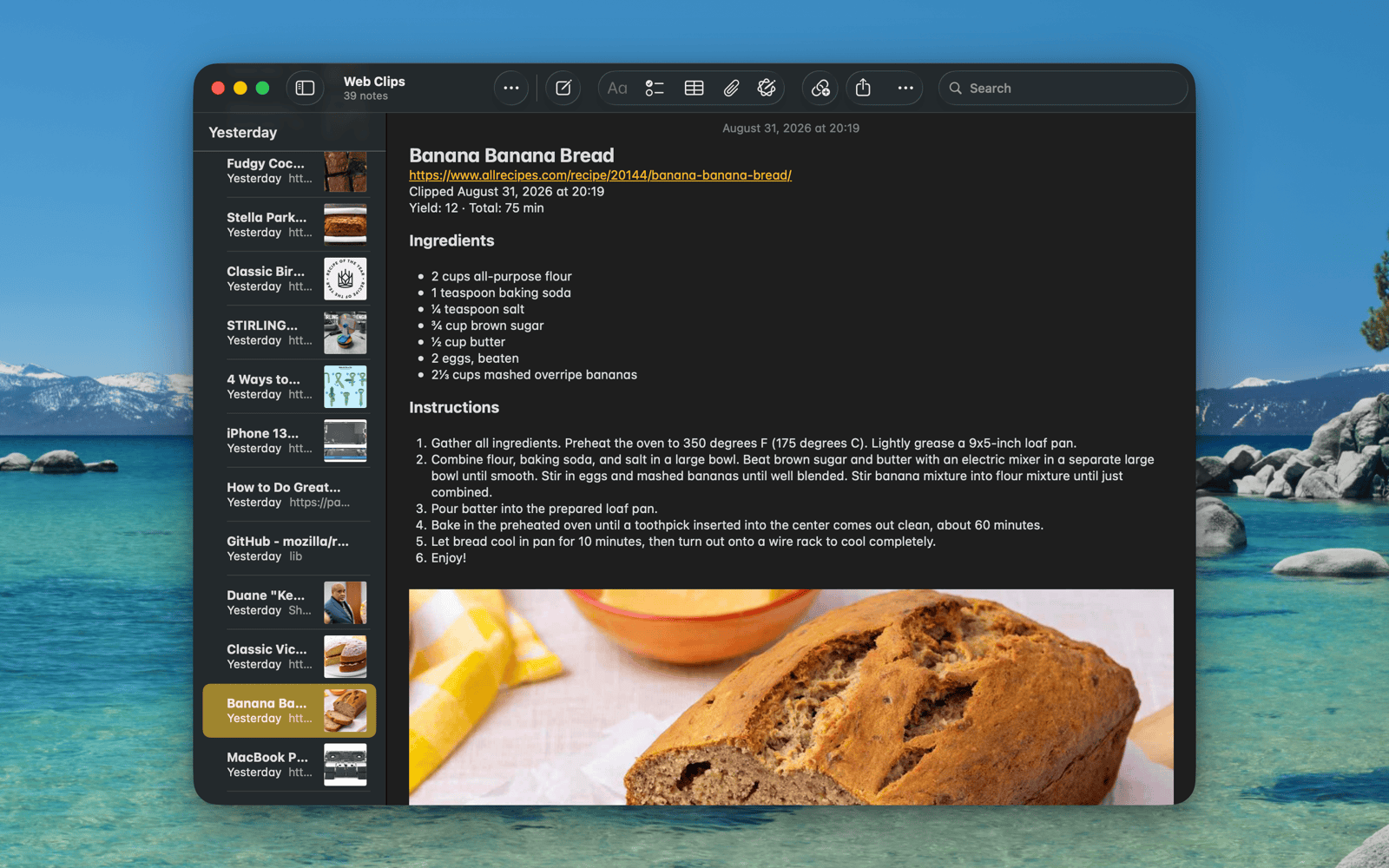
Recipes, ready to cook from
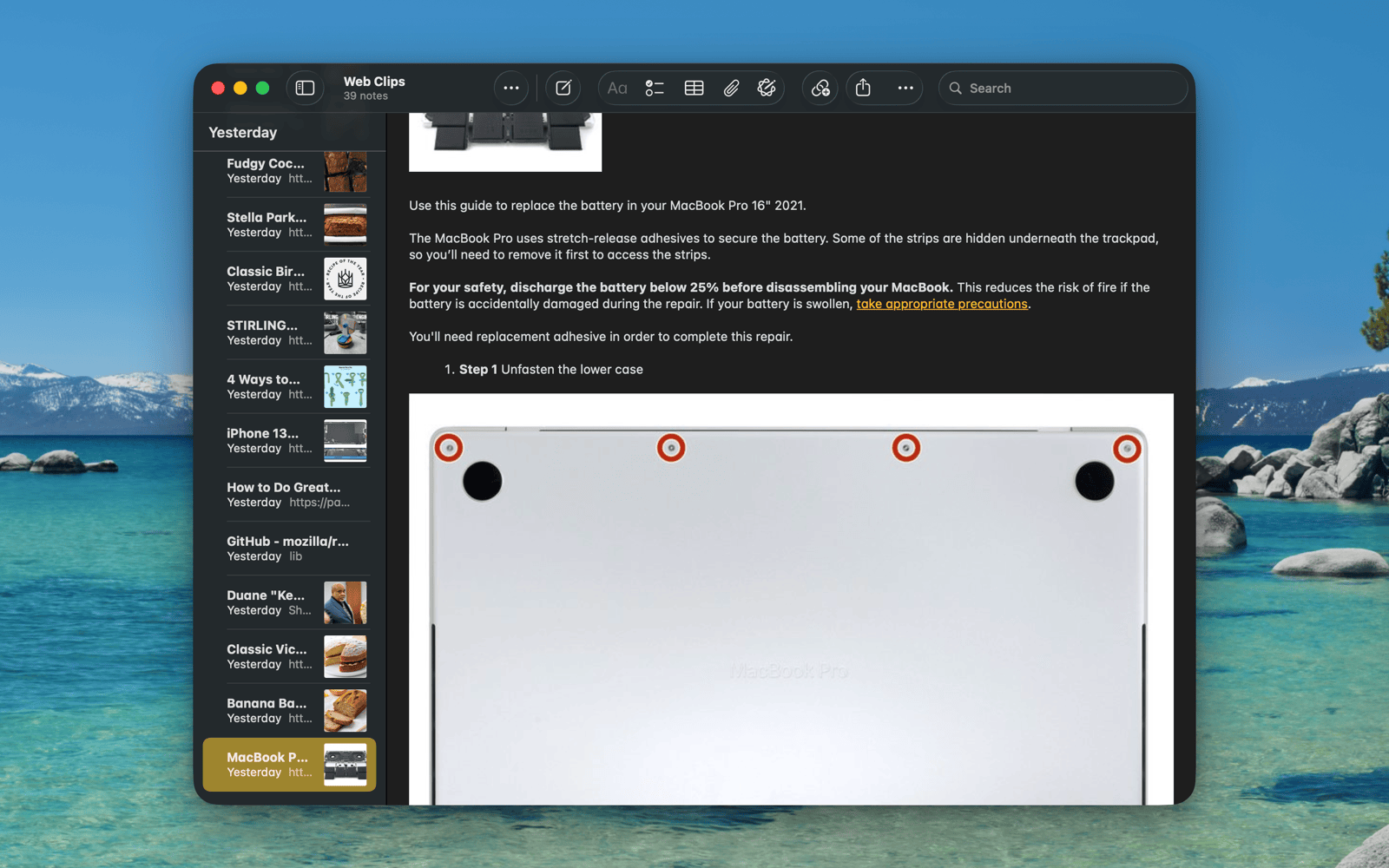
Guides, with every step and its photo
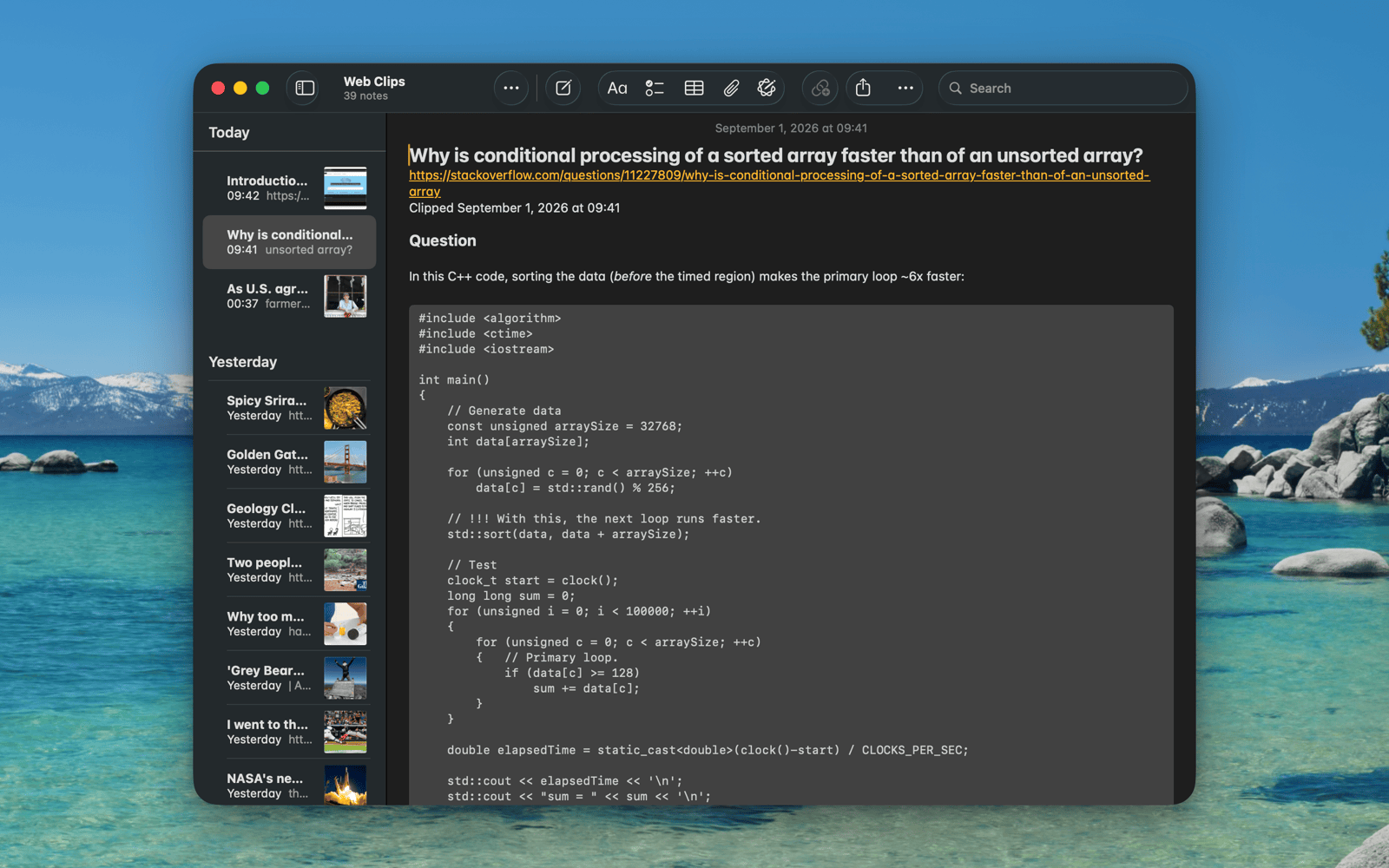
Code stays formatted as code
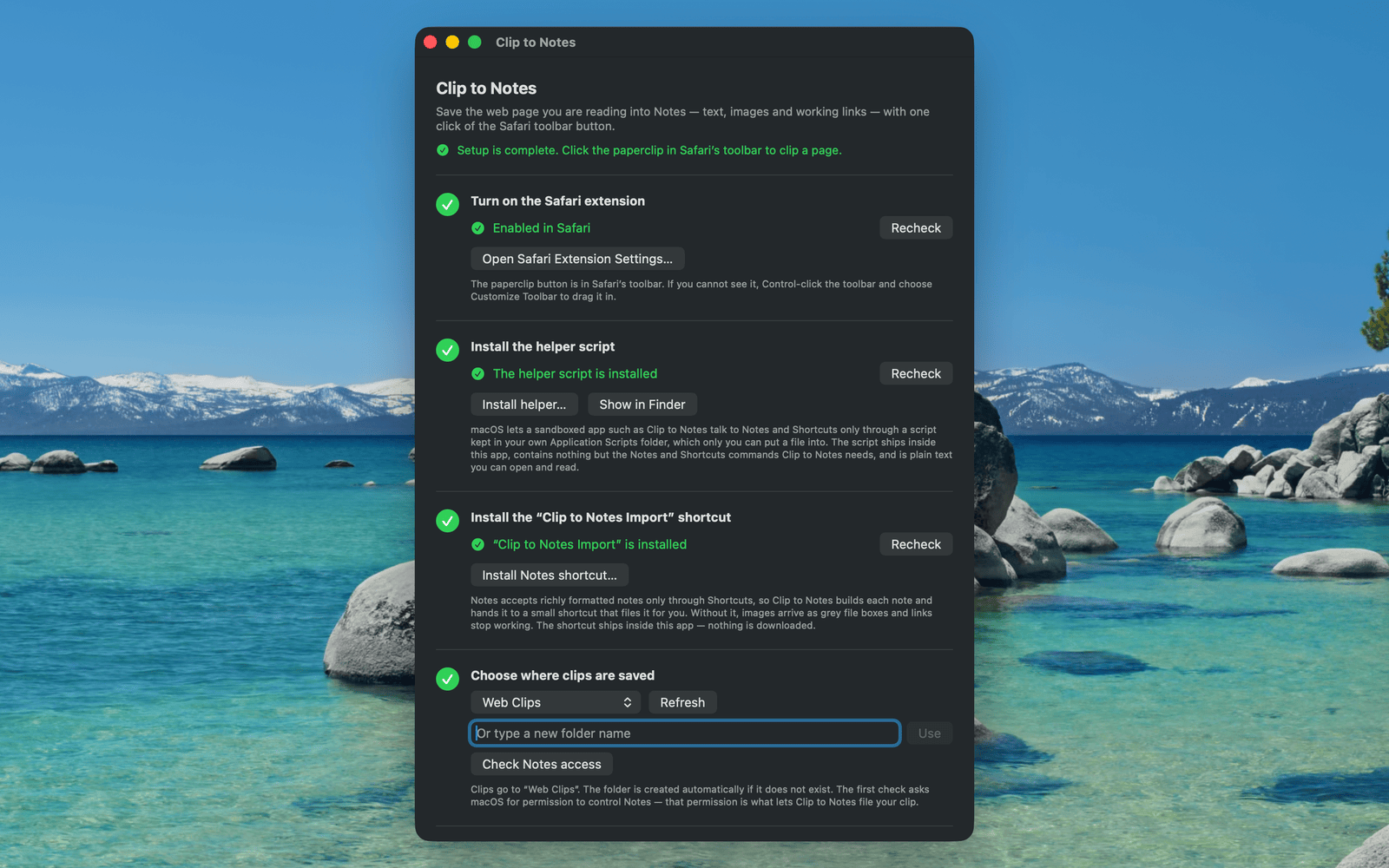
About a minute of one-time setup
What it does
The page you were reading, saved properly
macOS 26.5 or later and Safari. Clips are saved to a folder of your choice in the Notes app (“Web Clips” by default).
Notes only accepts richly formatted notes through Shortcuts, and macOS only lets a sandboxed app reach Notes and Shortcuts through a script in your own Application Scripts folder. So the first time you open the app, it walks you through a short one-time setup: turn on the extension in Safari, install the small helper script that comes inside the app, add the “Clip to Notes Import” shortcut (also included), and choose your folder. Nothing is downloaded, and each step gets a green check when it's done.Not affiliated with or endorsed by Apple. Apple, Safari, Notes, and Shortcuts are trademarks of Apple Inc.
Privacy
Nothing leaves your Mac
Clip to Notes doesn't collect, send or share any data. There's no account, no sign-in, no server and no analytics or tracking. The only network requests it makes are to download the images on the page you clip, so the finished note works offline. The extension only reads a page at the moment you click its toolbar button. Its App Store privacy label is “Data Not Collected.” Read the full privacy policy.